
Jira Software from Atlassian can become very complex very quickly. There are countless plugins, settings, and configurations you can make to customise Jira. However, all these features and possibilities also quickly lead to the software becoming quite complex in terms of handling and administration. But don't worry or “don’t panic”! We have put together a small guide here to help you get started as a Jira admin.
Admin rights only for employees who know what they are doing
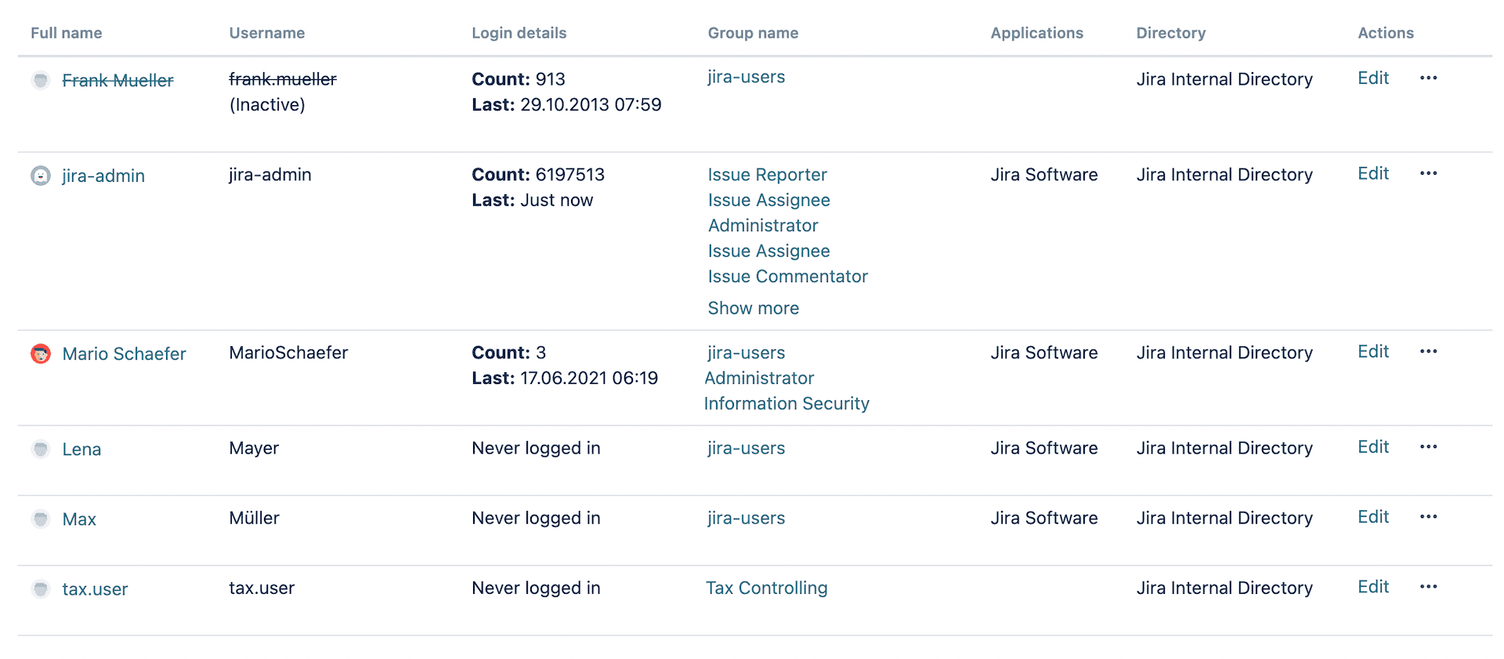
In Jira, quite a lot can go wrong quite quickly if you don't know what you are doing. For example, if you change the shared workflow in a project, there is a high risk that other projects will also be affected. This problem can always occur when schemes are shared with other projects. A typical and frequently occurring scenario that further illustrates this problem is changes to “Issue Types”. These schemes are often used as standard templates for multiple projects. Changes, or even worse, the deletion of Issue Types quickly leads to the bugs described above.
It is therefore advisable to only give admin rights to people who know what they are doing. All other users should only be assigned specific functions.
Manage users and groups by plan: faster permission management
Read the Jira documentation carefully
Jira already offers a huge range of standard features 'out of the box' that make your life as a Jira Admin considerably easier. So it is best to first refer to Atlassian's documentation. This already provides a variety of tips and tricks that you can use on a daily basis.
You can find out how to sustainably establish Jira in your company here: Guide - Simple introduction of Jira Software in your company
Define standards for workflows & ways of working for all users
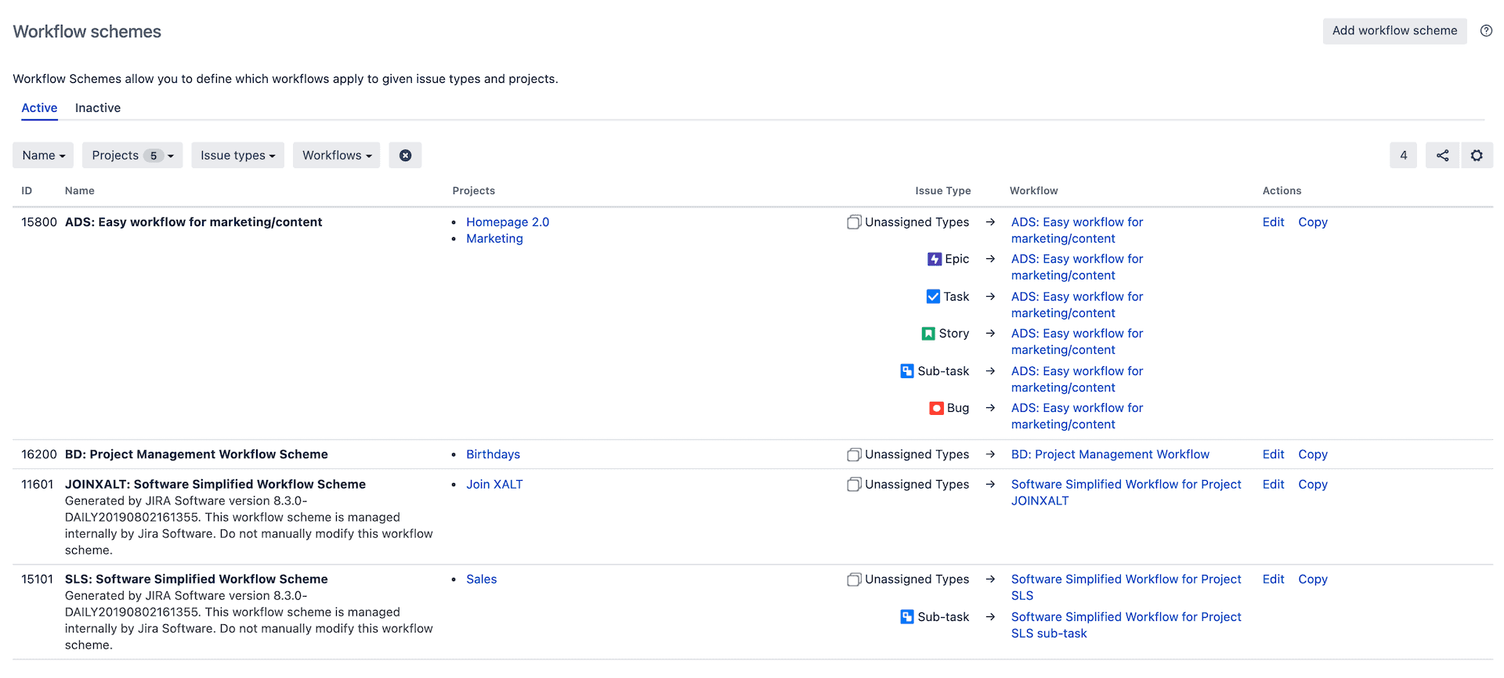
Jira is an excellent collaboration tool for standardising the ways of working of teams. Therefore, before unleashing Jira on the teams, it is advisable to first familiarise yourself with the working methods of the individual teams. Ideally, if, for example, all teams must adhere to a specific project process, these can be adapted into Jira. This allows all teams to use the same workflow, which an Admin sets up in advance as a standard scheme and ensures that this scheme is actually used when a new project is created. The assignment of standard schemes can be implemented for all projects in Jira and offers the charming advantage that you do not have to administer a multitude of schemes and that fewer schemes also bring about an improvement in performance.
Therefore, comprehensive standards for workflows, approaches and structures should be established in advance. This brings the big picture back into focus.
→ Digitalisation and automation of Jira processes - Find out more
Archive completed projects
Over time, more and more new projects are created in Jira. This can quickly lead to a loss of overview and confusion when creating a ticket. It is always advisable to archive a project upon its completion. This not only makes these projects no longer visible to users, but also improves the performance of the entire Jira instance. You can find out how to archive completed projects in the Jira documentation.
Keep the number of schemes manageable
If you ask ten different people from ten different departments what their processes look like, you will get hundreds of different answers. It feels as if every project has a different process and approach. From the perspective of a Jira Admin, it makes sense to analyse and understand the working methods of the departments via workshops, with the aim of defining a uniform project structure ("common denominator") in Jira. Once this has been done, projects with the same way of working can use the same schemes, thereby enabling the departments to collaborate, for example, via KANBAN or SCRUM boards.
Ensure that the number of custom fields remains manageable
Similar to workflows, teams love customised fields. However, if new custom fields are constantly being created, you will also lose track of things here. Here, you should rather ensure that existing fields are reused and can be used in a new context if necessary.
An example:
Many Jira Admins take over existing systems in a new job to "tidy them up". Upon taking over, it turned out that there were 40 different iterations for 'Start Date' and 'End Date'.
The consequences of this were more than visible in daily use. For example, it was no longer possible to display all issues with the start date 01.08.2020 for projects A, B, C, etc.
Therefore, ensure that existing custom fields are reused.
Document your approach
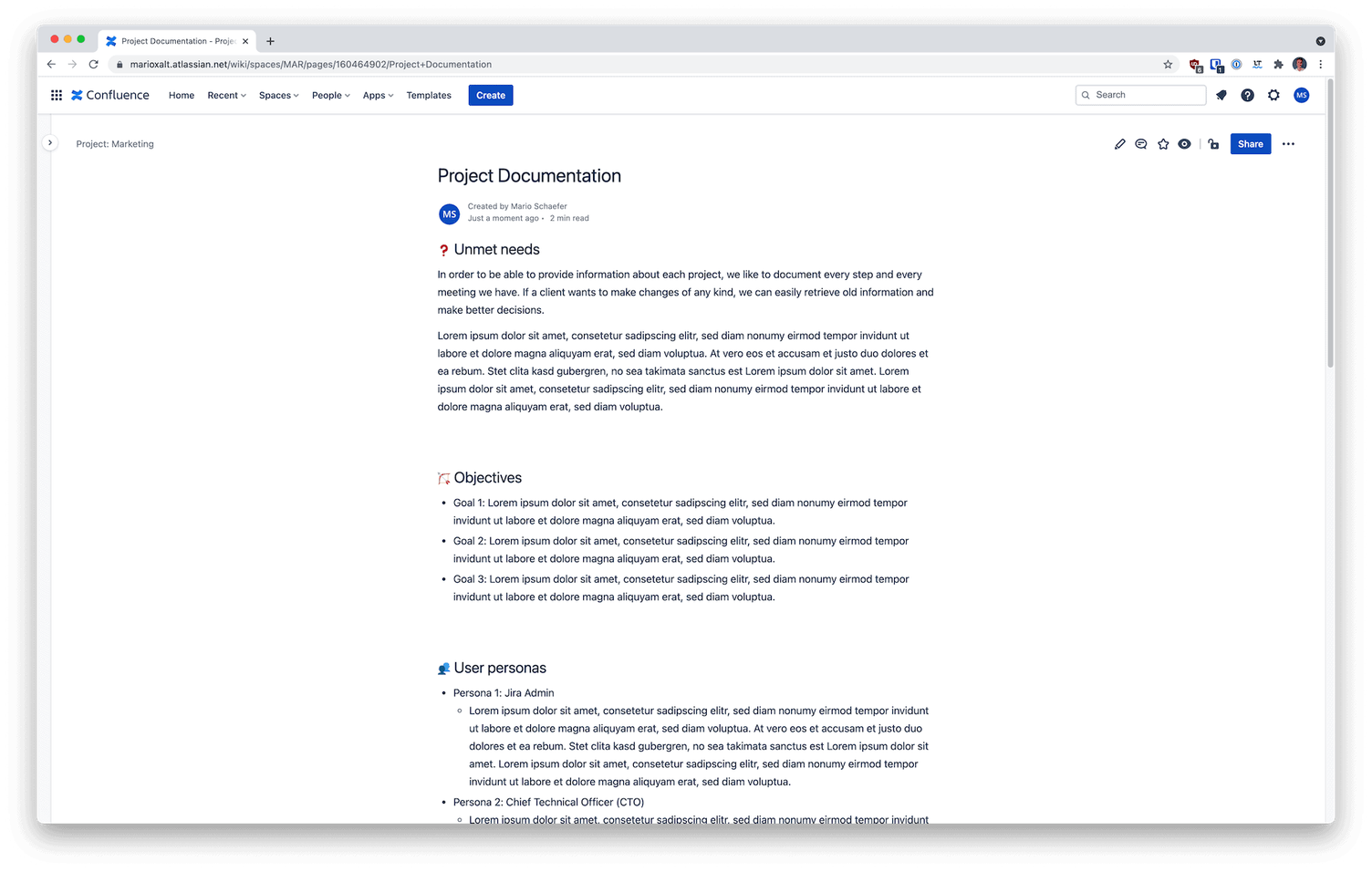
How many times have you thought, “How was this project configured?” Probably countless times. To ensure that the approach to configuration is not lost, comprehensive documentation is unavoidable. It is advisable to create documentation in Confluence, with the option to link individual projects to a Space (an area in Confluence). This allows you to build a traceable documentation.
Providing knowledge within the company is of essential importance to employees and leads to more know-how, professionalism, and productivity in the long term → Learn more in our article on knowledge management
Board configuration (KANBAN, SCRUM)
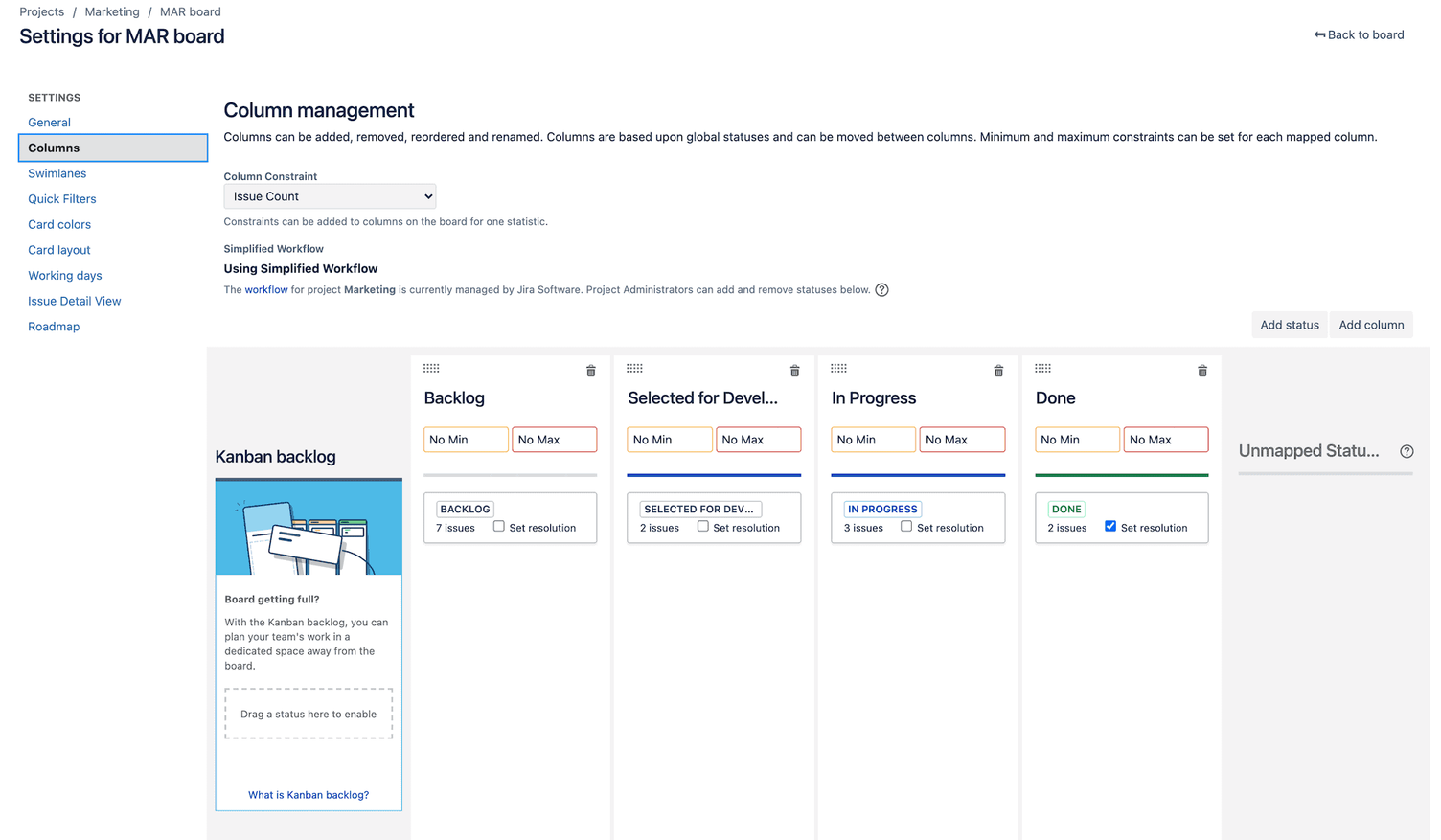
Whenever possible, assign the status of a project exclusively to one column in the board configuration. In addition, it is important to ensure that the column name is either identical to the status or uses similar terminology. This makes the board easier for users to operate, as it is immediately apparent which column the corresponding status belongs to. Otherwise, users are unable to move issues with a simple drag-and-drop if both the source and target status are assigned to the same column.
Use the main filter of Kanban or SCRUM boards correctly
Always set the main filter of the board with "...ORDER BY Rank ASC" at the end. Otherwise, you lose the ability to sort the displayed issues vertically, which is essential for backlog management and a useful way to have control over the display order of cards on the board.
Use Quick Filters
Set Quick Filters as needed to ensure clarity on the boards. You can set a Quick Filter in the board configuration for any field in Jira via JQL. This allows a cluttered board to be quickly reduced to the desired information. For example, if you want to display tickets on the board that are assigned only to you, a corresponding Quick Filter could look like "Assignee = X", or better, "Assignee = currentUser()". You can find more information about Quick Filters here.
Summary
As a Jira Admin, you must not only ensure that the system runs smoothly and stably. You must ensure that the system remains clear at all times and that well-considered adjustments are made. Customisations in workflows, projects, and custom fields help teams in their daily work, but they make it harder for you to keep the system “clean”.
Do you need support with using Jira, or does your company want to personalise the system entirely according to its requirements? Our Atlassian Consultants are happy to help you here. Get in touch now.