
For companies, providing high-quality customer support is a tremendous effort. To avoid drowning in support tickets, many companies today use other solutions in the area of Customer Self-Service, such as a Help Center or a Knowledgebase. Learn in this article: Create a Help Center in Confluence.
Companies that actively use customer self-service make it easy for their customers to solve problems themselves without having to send emails or make calls. Today's customers are increasingly tech-savvy. This means that they would like to find solutions to their questions themselves wherever possible.
The ability to quickly get answers to questions is crucial for a positive experience. According to Zendesk, 40% of customers use a self-service, such as a Help Center, before contacting the company's support. However, some requests will always require manual advice, which is why a Help Center should not stand alone. A combination and integration with other support channels (such as a Service Desk) enables a seamless experience here. Creating a Help Center in Confluence can provide valuable support in creating an effective Help Center in Confluence and in creating a Help Center in Confluence.
"One of the first things you need to know when you're learning about help centers: Self-service matters. Not a little bit... Self-service matters a lot."
Use Confluence as the foundation for your Help Center
Developing a successful Help Center is a major undertaking, both in terms of effort and significance. Choosing the right software is crucial. We recommend Confluence from Atlassian for this purpose.
How to create a Help Center in Confluence
Creating a Help Center in Confluence is a crucial step in improving customer support and increasing customer satisfaction.
Creating a Help Center in Confluence is an effective way to organize your support resources and provide your customers with a user-friendly solution.
Confluence is a web-based corporate wiki where aspects such as knowledge management and collaboration come together (Here you can learn more about knowledge management). It is easy to use, promotes team collaboration through simultaneous co-editing of pages and content , and enables members to provide access to knowledge and information. Confluence is, among other things, an optimal tool for writing documentation for products or other services.
Our experience: Help Center for our apps
To make our product documentation accessible to all our users, we converted our internal Confluence space into a public Product Help Center using Scroll Viewport. The goals of the implementation were to reduce the number of support tickets for our plugins through mature product documentation and thus relieve our team. Furthermore, users of our plugins should be able to quickly and easily find solutions to their questions as well as news about updates.
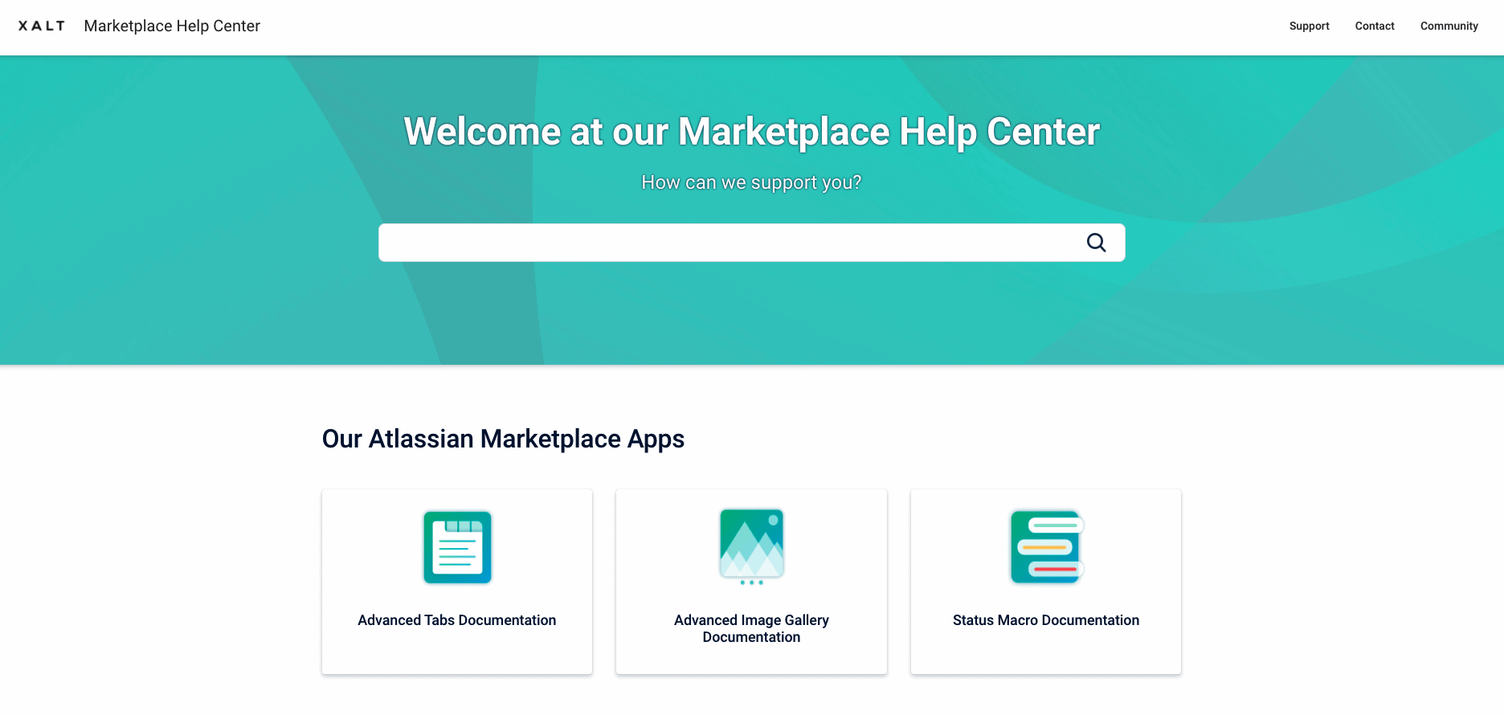
However, before publishing a Confluence space, the question arises as to how it can best be made available to users. Upon publication, the internal Confluence URLs are still used, and there are only limited features for adapting the layout to your corporate branding, which can confuse customers when using it. To avoid this, we again recommend using the Scroll Viewport plugin from K15t.
| Using a high-quality Help Center benefits both your team members and your customers. A Help Center increases customer satisfaction by providing better and, above all, faster service. Incurred costs are reduced while the efficiency of employees is increased. Repetitive tasks and costs are eliminated, allowing employees to focus on other tasks. A Help Center also expands your business community, presents your company as a hub for knowledge, and develops a deep connection between you and your customers. |
Implementing a Product Help Center with Confluence and Scroll Viewport
Below is a step-by-step guide on how to set up the basic framework for a public Help Center using the two tools mentioned, Confluence and Scroll Viewport.
Step 1: Create the desired spaces and pages in Confluence
In the first step, the Scroll Viewport for Confluence plugin must be installed in your Confluence instance. Instructions for installing the plugin can be found on the Atlassian Marketplace. Once the installation is complete, you need to create the spaces required for your documentation. We explain this using our Marketplace documentation as an example.
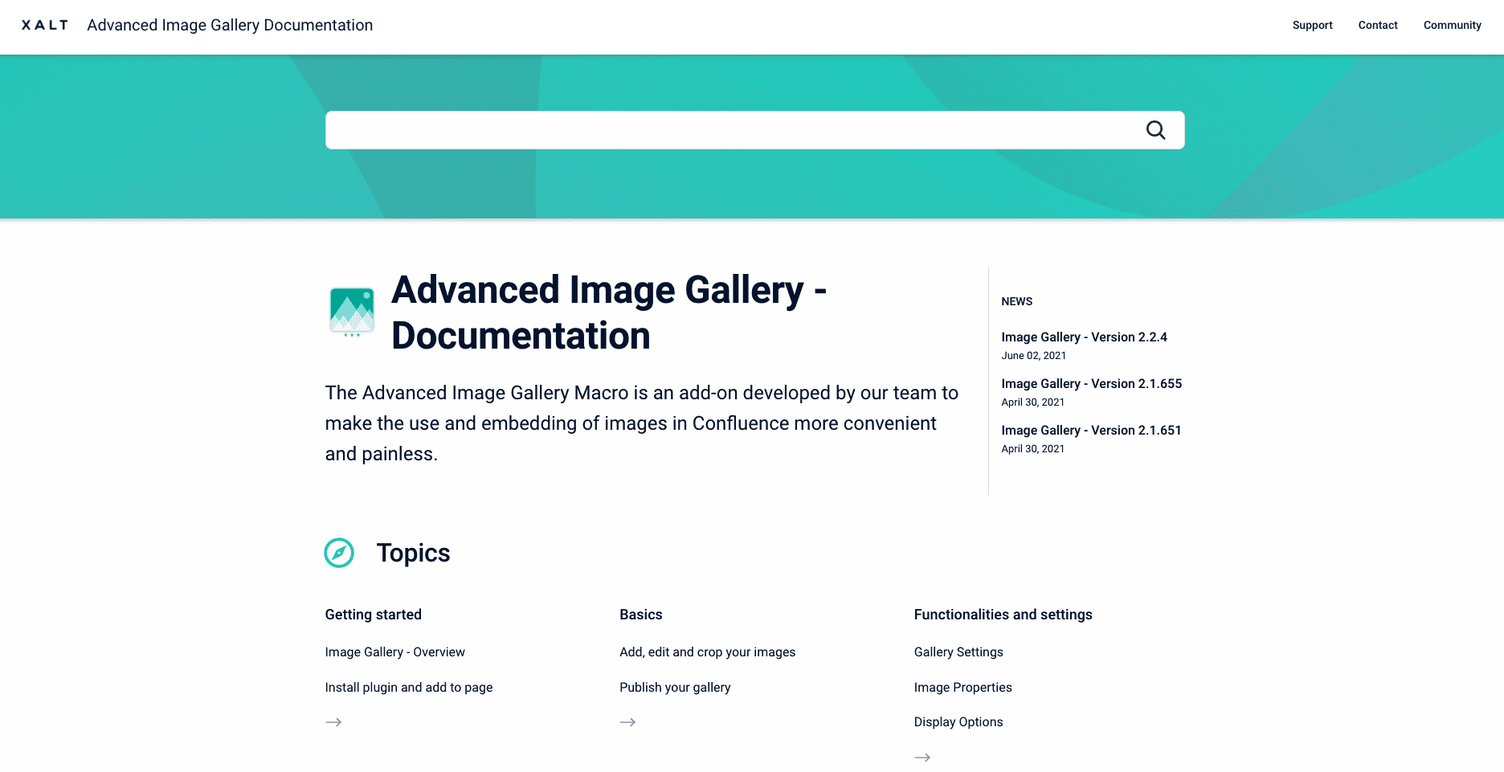
We decided to create a parent space with an overview of the plugins for our Marketplace app documentation. To do this, a new space must be created in Confluence.
To do this, click Spaces in the header bar in Confluence and then click Create space. So far, we have created a total of 4 spaces for our documentation:
- Marketplace Help Center (parent space, home page of our Help Center)
- Advanced Tabs Documentation
- Advanced Image Gallery Documentation
- Status Macro Documentation
Once the space has been created, the Scroll Viewport plugin must be enabled on the pages via Configure space. Click on Apps, then on the tab Scroll Viewport and on Create Viewport.
Step 2: Linking the individual spaces together
A separate viewport must therefore be created for each space in Confluence. An important step here is defining the structure and hierarchy of the pages. Several individual viewports can be combined into a hierarchical viewport collection. Initially, a space must be designated as the Root viewport, in our case the Marketplace Help Center space.
To do this, navigate to the space you want to designate as the Root viewport, and go to Apps - Scroll Viewport - URL. Click on Enable viewport collection under this path and save your changes. This space now represents the Root of the Help Center with the configured domain name.
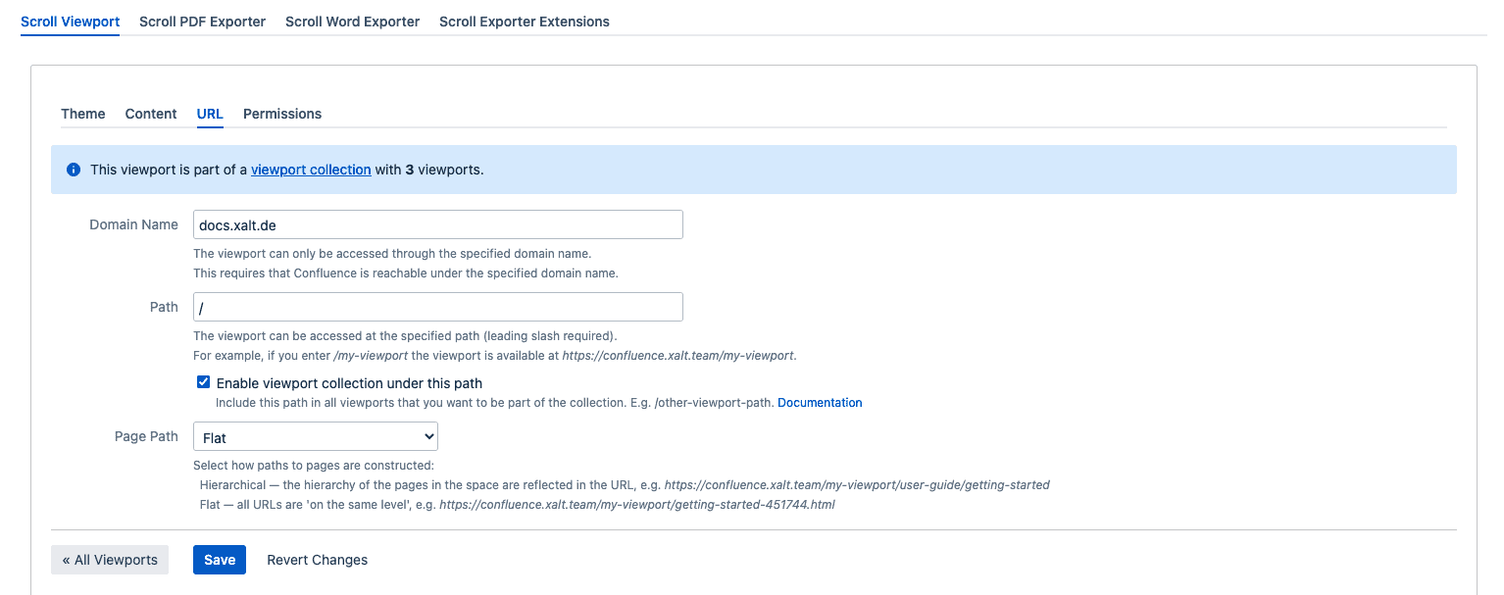
To group other spaces that belong to the documentation under the Root viewport, the individual viewports in these spaces must be edited. Navigate to the desired space, ensure that the same theme is selected, and click on URL again. In the URL field, enter the domain of the Root viewport on one hand. In our case, this is docs.xalt.de. Additionally, add the desired path name for the space under Path. We named the documentation for our Advanced Image Gallery plugin with the abbreviation AIGDOC (=Advanced Image Gallery Documentation).
If the root viewport has the path docs.xalt.de, the space for our plugin is now docs.xalt.de/AIGDOC. You must make these changes for all spaces you want to include in the structure of your Help Center. Above the URL field, you can also get an overview of the viewport collection with all configured spaces.
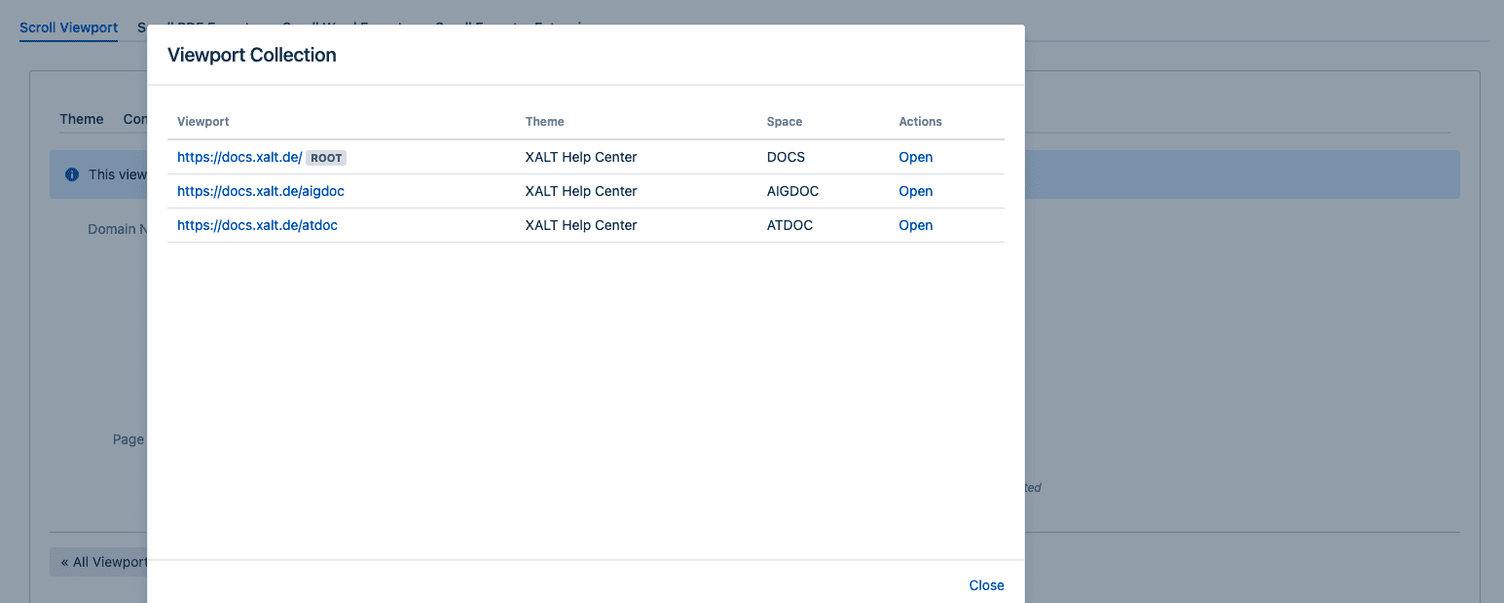
A detailed description of the possibilities for structures and viewport collections can be found in the k15t documentation. We recommend the articles Structure Your Help Center and Group Viewports in a Collection.
Step 3: Defining the layout and theme for the individual pages
The Scroll Viewport Theme Editor is used for the layout of the Help Center. Click on Theme. You can choose between the Help Center and Web Help themes, or create a new theme. We recommend working with the Default Theme. Default themes cannot be edited directly but must be copied and duplicated. Click on the three dots, then on Copy and name your new theme.
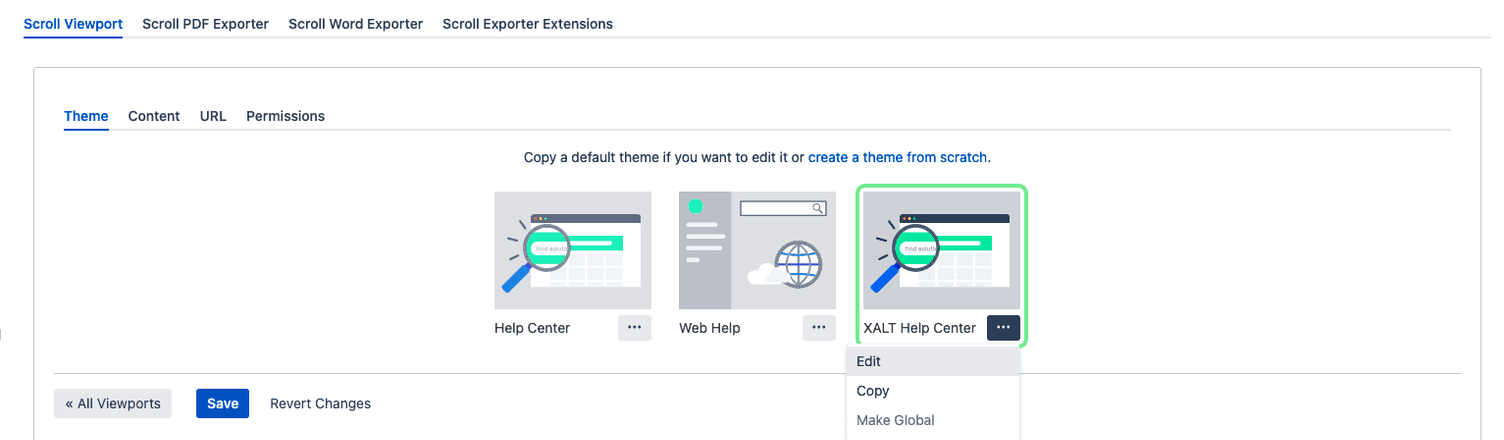
To make settings in the theme, click on Edit. The Scroll Viewport Theme Editor then opens with the theme-settings.properties, in which the theme settings are made.
| Pro tip: The theme and other layout aspects, such as font and size, are fully customizable. However, this is not included in the standard features of Scroll Viewport. Changes must be implemented separately using CSS. We are happy to support you with an individualized solution for your Help Center. |
In the Scroll Viewport Theme Editor, four areas of the Help Center can be edited in principle. These include the
- global settings, such as the header and footer,
- the settings for the Help Center home page, such as the banner and the heading,
- the settings for the area's home page, such as the display of content and news, as well as
- the individual pages.
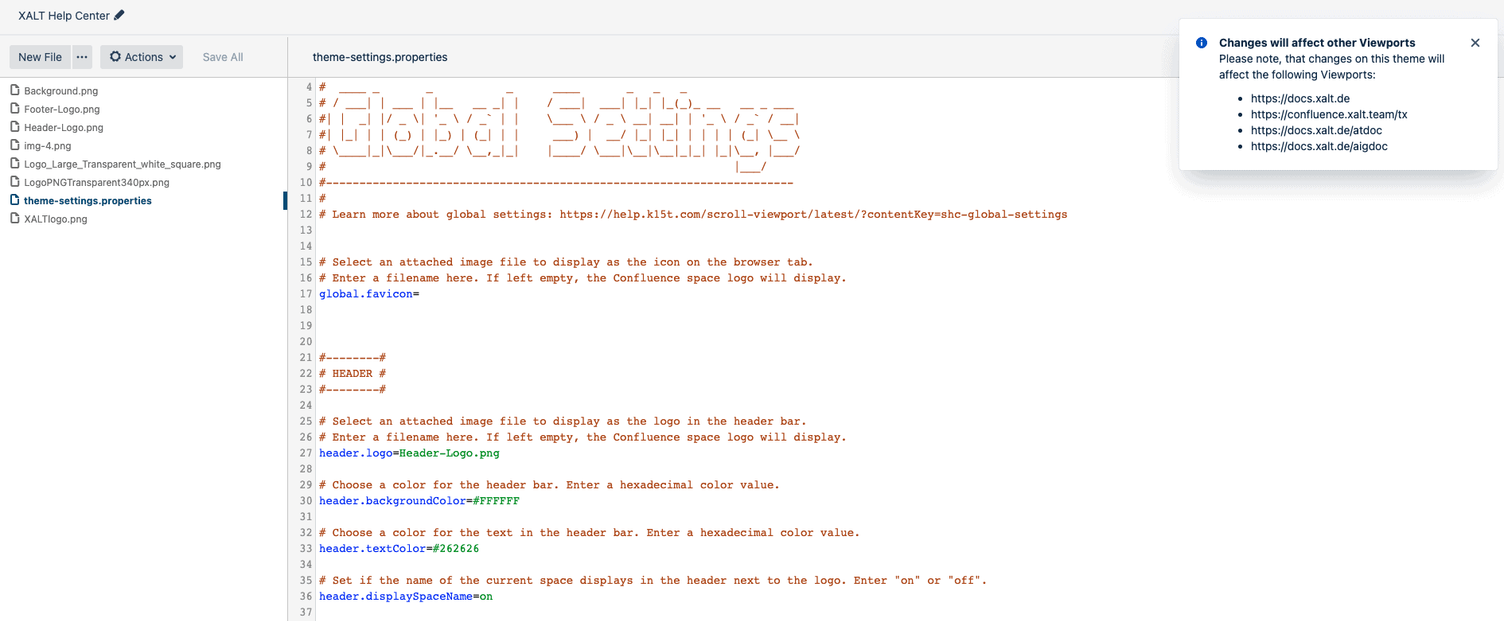
In principle, there is no universally applicable guide in the theme settings. The settings should be implemented according to your own needs and ideas. We therefore recommend making various settings, as described in the Scroll Viewport Theme Editor .
The results can either be viewed via the preview in Apps - Scroll Viewport - Theme or directly in the final view. Navigate to the home page of the Help Center or to a page within the documentation. Click on the Scroll Viewport symbol next to the page's metadata and then on Open.
Step 4: Filling the Confluence pages with content, images, and instructions
Once the structure of the Help Center has been set up, you can begin filling the pages with content. In principle, Help Center articles are not much different from helpful blog posts. Users should be encouraged to read by a clearly formulated headline. Useful instruction steps as well as links to further helpful documents should give readers the opportunity to practically implement the information presented.
Furthermore, it should be ensured that the textual content is always supplemented with additional image and video material. For documentation, screenshots (including annotations) of the individual steps are usually suitable.
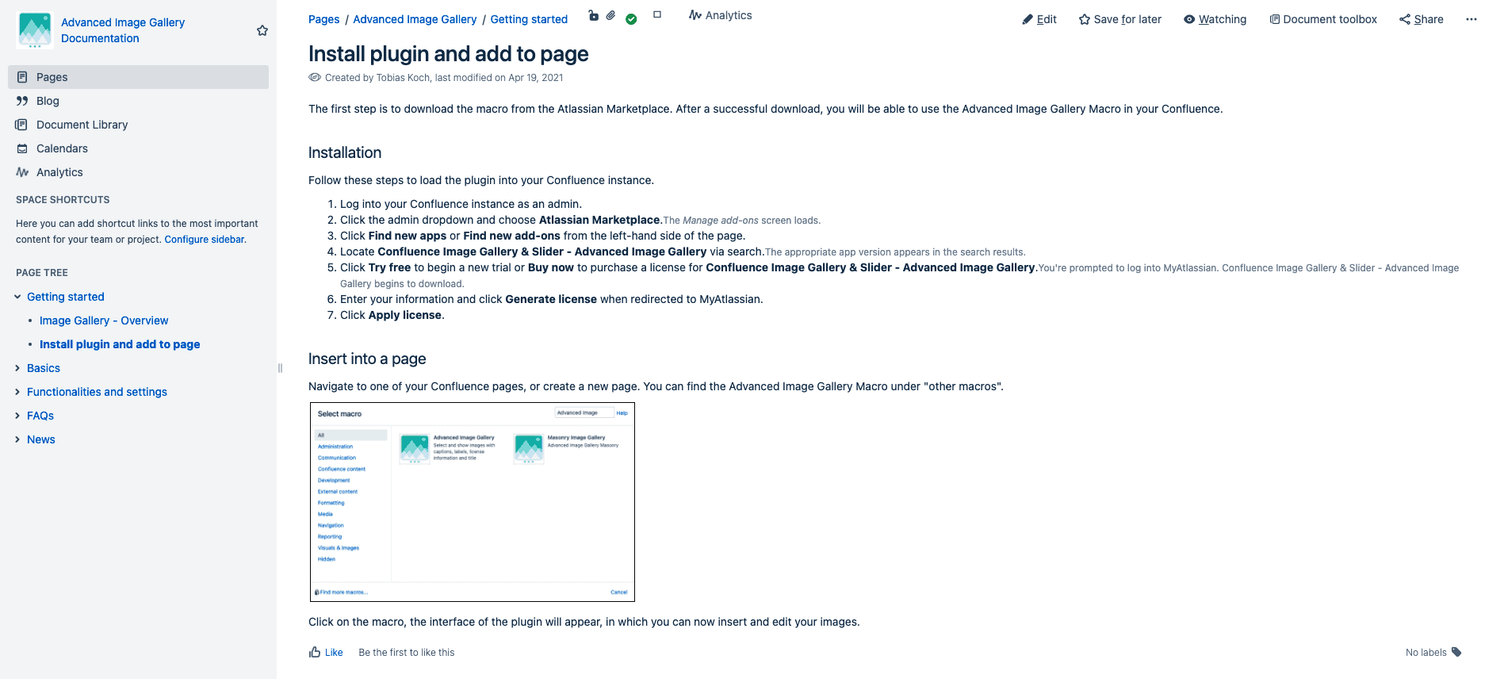
Three building blocks that we include in each area are a page for Getting started, the FAQs and the News. Getting started provides a compact overview of the plugin installation as well as the key hard facts of the app, including for which product and hosting type the plugin is available. In particular, the FAQ page is an important component of the Help Center. The FAQs should, however, be created with consideration of the support tickets. Frequently asked support inquiries, such as inquiries about new features, are incorporated into the FAQ page and should contain answers that are as precise as possible.
For the documentation to be publicly findable, a tick must ultimately be placed next to View under Configure area - Permissions for Anonymous users. Almost any permission can be granted to anonymous users, but we recommend limiting this to viewing and commenting.
| Pro tip: Formulate the titles of your articles so that they can be easily found via the search function in the Help Center. Most of the time, a keyword analysis makes sense here to find out which search terms and phrases your users use when looking for a solution to their problems. Discoverability can further be improved by using keywords in the text and through assigned labels. |
How you can implement this yourself
Developing a Help Center does not automatically ensure that it is actually used by your customers and seen as a help. On the one hand, customers must be able to quickly find answers to their questions (faster than with live support). On the other hand, customers must be able to understand and implement the content and help in your Help Center. This brings aspects such as user experience, design, as well as structure and layout to the forefront, which must be considered during development.
Our support
With good advice, creating and maintaining a Help Center is significantly easier. We therefore recommend contacting a qualified implementation partner of your choice who can provide you with support in the implementation. In addition, the following points must be observed:
- Define goals early: The first step in creating a Help Center should be considerations of what the Help Center is intended to achieve. Is the workload from handling support tickets to be reduced to relieve your team? Is the Help Center intended to improve the relationship and connection with your customers? Or both? Think about this and set appropriate goals for your company.
- Understand customer needs: Use internal company knowledge to identify the expectations of your customers. Use formulations and structures in the Help Center that are understood by your target groups and arouse their interest. If answers are provided that are not understood by the target group, the Help Center does not fulfill its purpose.
- Actively involve employees: Let your employees take an active role in shaping the Help Center. They can provide important input on the wishes and behavior of customers.
- Focus on user experience and data analytics: A good user experience is the A and O. If the UI is not excellent, visitors to your Help Center will not stay long, let alone return. Create simple and fast navigation to the most important articles, combined with a search function. Measure further performance parameters of your Help Center for improvement, such as views of specific articles and time spent in the Help Center.