Advanced Image Gallery is now available for Confluence Cloud in the Atlassian Marketplace. Teams can display images as galleries on their Confluence pages and edit them directly in the editor.
Bring a page's images together
Start directly on the Confluence page: in edit mode, type /gallery and select Advanced Image Gallery. The editor shows images already attached to the page. Select individual files or all of them, and upload more without leaving the editor. Uploaded images remain page attachments.
In the editor, reorder the selection by drag and drop and add captions, copyright and alt text.
Consider an internal communications team adding event photographs to an existing event page. Instead of placing every file separately in the text, the editor selects the relevant page attachments in the gallery. A representative image can be moved to the front, and each picture can have its own caption and alt text. The sequence is maintained as a gallery rather than as a series of individual page blocks.
The crop editor offers a free selection as well as fixed aspect ratios such as 1:1, 4:3 and 16:9. You can also move and adjust the crop area with the keyboard. That helps when a subject needs different framing for a tile. The source attachment remains untouched: someone downloading it later still receives the original rather than the gallery crop.
Four views for different content
The right layout depends on the content. Grid arranges images in regular tiles. Masonry preserves different image proportions in columns. A slideshow shows one image at a time with thumbnails; Moments starts a full-screen story from a cover card. Grid and masonry also offer a tile-size setting.
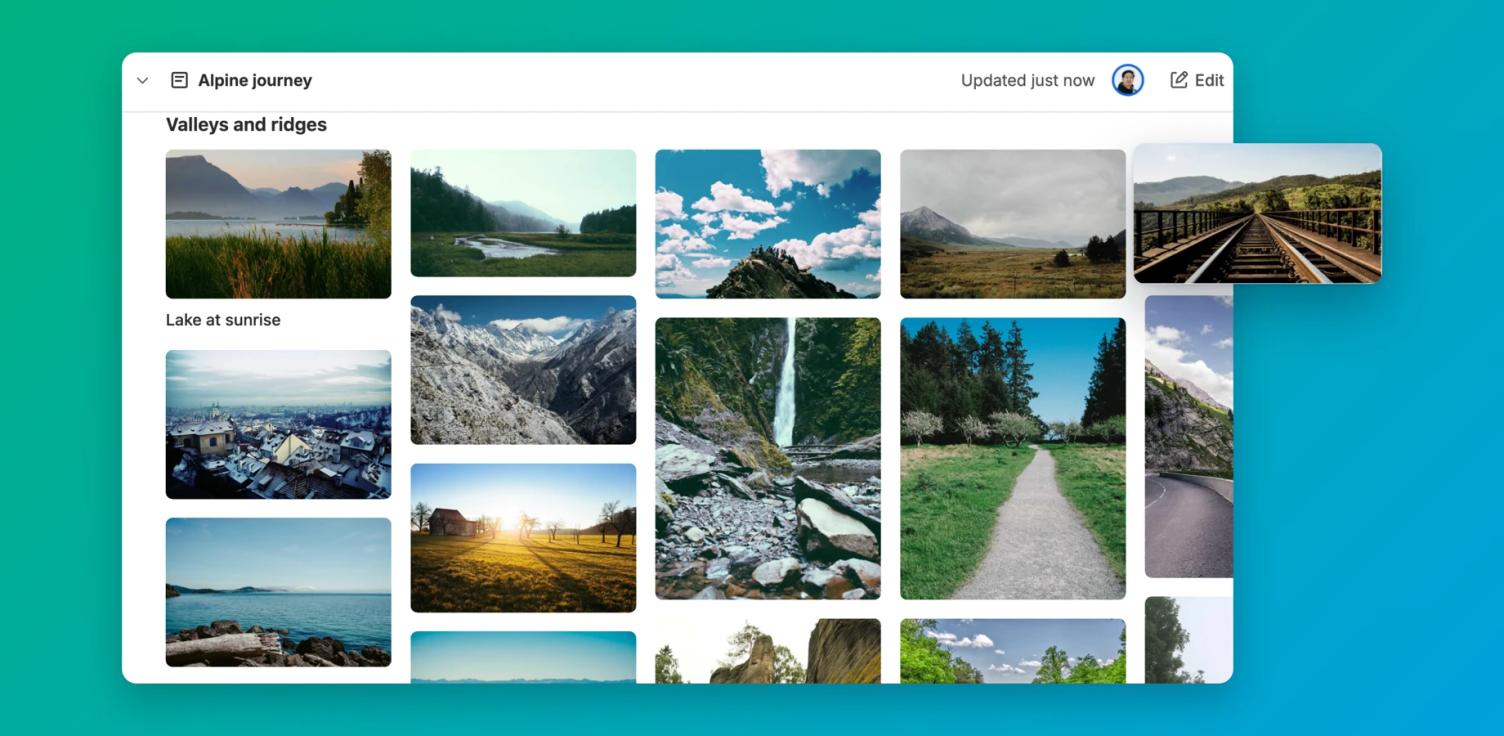
This lets you adapt the display to the page without preparing the images again.
You can preview the gallery at a fixed width or full width to see how much space it will take up on the page. Choosing a layout changes how the images are displayed, not the contents of the attached files.
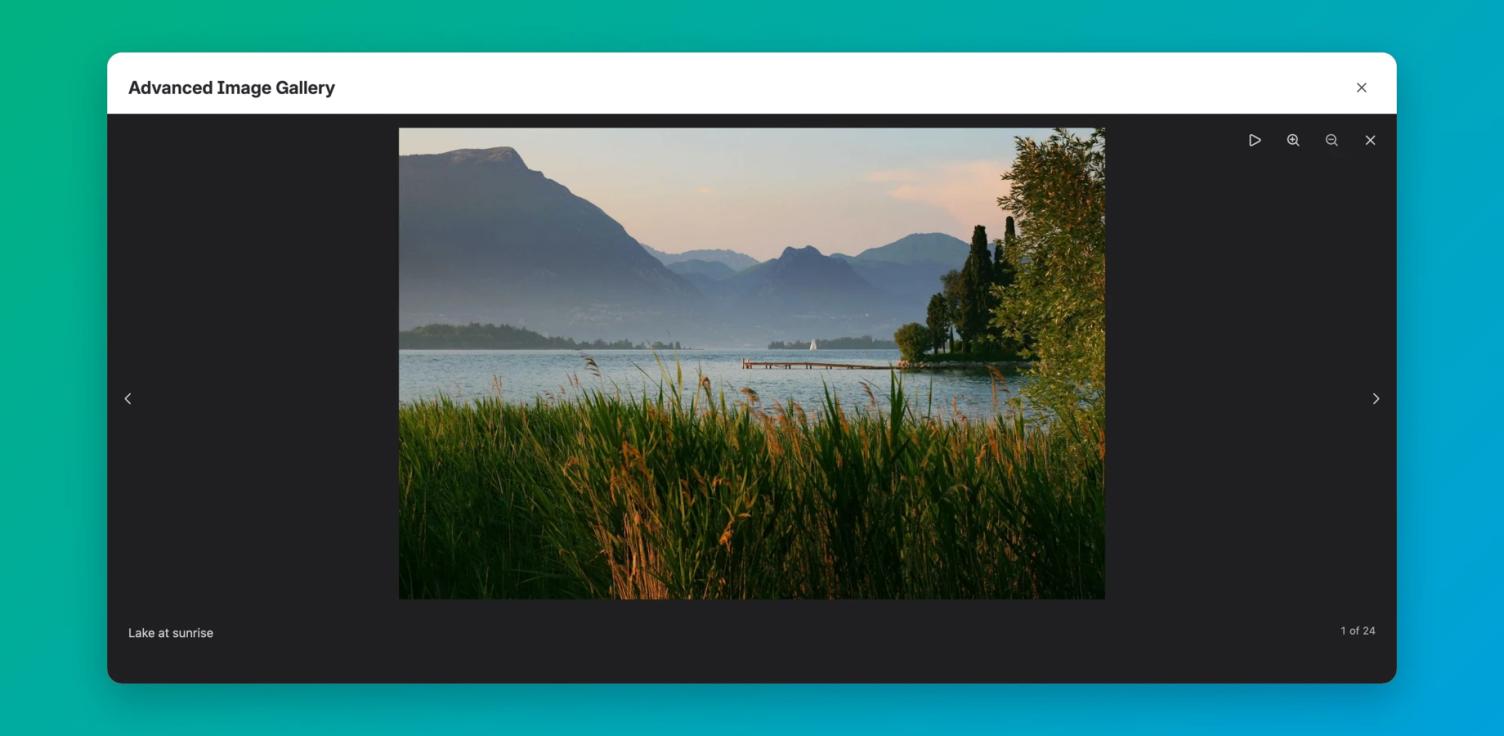
Readers can open an image in a lightbox with its caption, navigation and playback controls. Automatic playback pauses while a reader hovers over an image, giving them time to inspect a detail or read the accompanying description.
Use Rovo to work with galleries
Readers can ask Rovo about a gallery from the page. The agent can also list a page's images or find gallery images by title and caption. For example, ask it to create a masonry gallery from all images on the page. Rovo shows the selected settings for confirmation before inserting it. The gallery is then in the page draft, not yet published to readers. Review the result before updating the page.
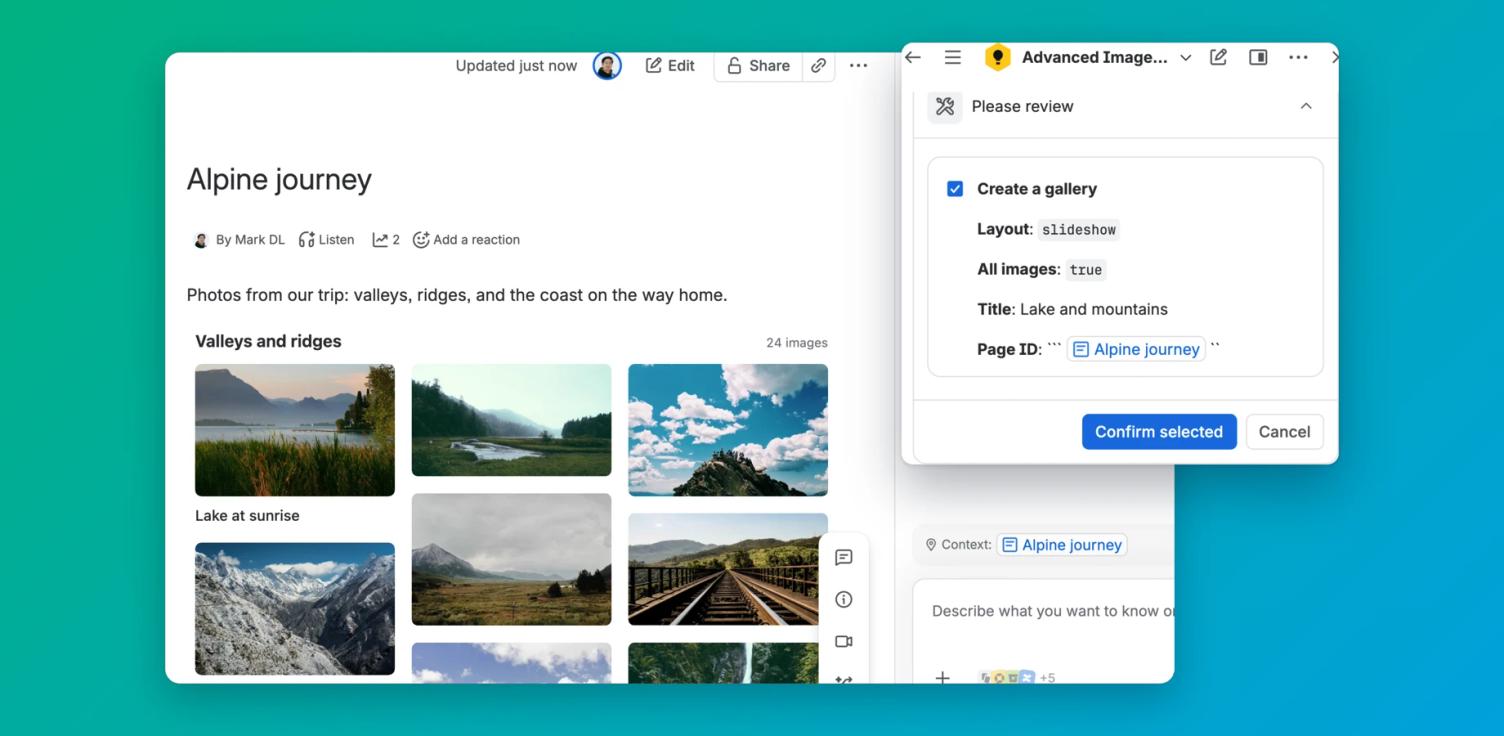
Admins can switch the app's AI features off centrally.
Where does a gallery help?
A gallery helps when images belong together: a project team can document construction progress, an internal communications team can share impressions of an event, or a product team can show several views of a prototype. The image files stay in the context of their Confluence page instead of interrupting the text as separate images.
Grid or masonry suits a collection that needs to be scanned quickly. When the order tells a story, a slideshow or Moments is an alternative. Readers can open an image in the lightbox, see its caption and start playback. The slideshow pauses while they hover over an image.
Alt text describes what an image shows; captions provide context to all readers. You can add both per image in the editor. A copyright notice can also be entered and displayed through the settings. You still need to check the rights to each image separately.
Sequence matters on an internal product page too. A team might show an overview of a prototype first, followed by details or stages of development. A captioned gallery makes the images easier to read together, but it does not replace a technical explanation or the decision about which pictures and details are approved for the audience.
When a page has many pictures, check the selection before saving. Have draft images been included by accident? Does each alt text describe its subject? Have sources and usage rights been checked? The app supplies fields and tools; responsibility for the content remains with the team publishing the page.
Getting started in Confluence Cloud
Open the Cloud Marketplace listing and check installation and current terms. Once the app is available on your Confluence Cloud site, edit a page, insert the macro with /gallery and select images. Reorder them, add captions and alt text, and choose a layout. Save the gallery, then update the page.
In the editor you can crop, rotate and mirror images. The original attachments remain unchanged; exports and downloads still show the original. Check the gallery in the page draft, especially its crops, order and text, before publishing the page. For setup and feature details, see the Cloud documentation.
Cloud and Data Center
Advanced Image Gallery is available for Cloud and Data Center through separate Marketplace listings. In Data Center, you can use grid, masonry and slider layouts and edit images with filters and brightness, saturation and contrast controls. Cloud offers four views, including Moments, and integration with Rovo. Check the features you need and the current version in the relevant documentation.
We strongly recommend using the Cloud version and planning your move early. Atlassian will end support for Confluence Data Center and other affected Data Center products on 28 March 2029. Find support for your move through our Atlassian Cloud migration service, and get help with licensing questions from our Atlassian license management team.
For a move from Data Center to Cloud, establish how existing galleries and attachments can be transferred and which display or editing functions are essential. The Cloud release alone does not confirm an automated migration path. Plan a check with a representative page and resolve open questions with support before a larger transition.
Find out more on our product page and explore other extensions in our Marketplace apps overview.