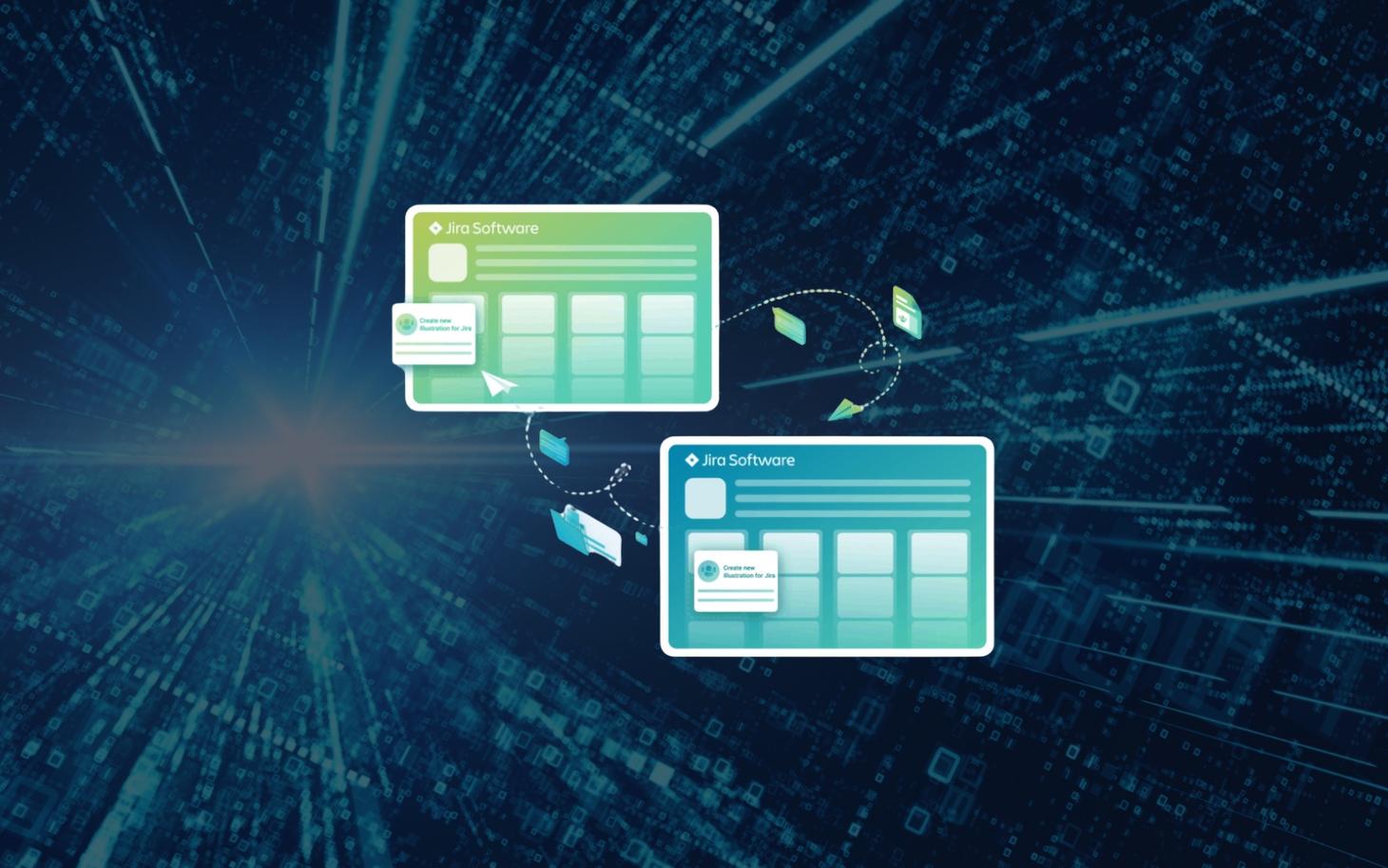
Imagine you are leading a complex software project. Your internal development team uses Jira for project management, while your external service provider uses a separate Jira instance. Does that sound familiar? You are not alone. The solution: synchronising Jira projects and tickets between multiple Jira instances/accounts.
- Why synchronise Jira projects, tickets and issues?
- The consequences: When projects get out of hand
- Why synchronise Jira? A few scenarios
- Scenario 1: Simple cross-organizational collaboration between development teams
- Scenario 2: Development and customer service in harmony
- Scenario 3: Seamless collaboration with external partners
- What options are there for synchronising workflows, tickets and Jira projects?
- 1. Workflow Mapping
- 3. Synchronisation of Jira ticket information
- 4. User Mapping
- The efficient solution: An app for synchronising Jira projects
- Step 1: Choose the right tool
- Step 2: Configure the synchronisation
- Step 3: Test and optimise
- Step 4: Rollout and training
- Conclusion: Synchronise your Jira instances for maximum success
- Your next step: End the chaos in your project management
Why synchronise Jira projects, tickets and issues?
Many companies face the challenge of sharing information between different Jira instances:
- No single Jira instance containing all relevant information
- Multiple platforms to capture and manage project data
- Additional effort required to keep all systems up to date
The result? An information chaos that hinders your productivity and complicates collaboration.
Let's take a closer look at the daily challenges arising from unsynchronised Jira instances:
- Time-consuming manual updates: Your team members spend valuable time manually transferring information between different Jira instances. These are hours lost to productive work.
- Inconsistent data: Without automatic synchronisation, discrepancies quickly arise between instances. Which status is current? Who has the latest information?
- Delayed response times: Critical updates or customer inquiries get "stuck" in one instance while the responsible team works in another. The result? Delayed responses and dissatisfied stakeholders.
- Communication gaps: Important comments or attachments in one instance do not reach all relevant team members, leading to misunderstandings and errors.
- Complicated reporting: How do you create a comprehensive project report when data is distributed across multiple systems? Consolidation becomes a time-consuming nightmare.
The consequences: When projects go off the rails
If you ignore these problems, the consequences can be severe:
- Lost updates: Important changes are lost in communication between teams, leading to wrong decisions and missed deadlines.
- Duplicate work: Teams unknowingly work on the same tasks because information is not synchronised. This wastes resources and frustrates employees.
- Delayed response times: Critical bugs or customer inquiries are not addressed in time, leading to dissatisfied customers and potential reputational damage.
- Team frustration: Employees waste time manually transferring information between systems. This frustration can lead to declining morale and increased turnover.
- Increased risk of errors: Manual data transfer leads to typos and misunderstandings. In critical projects, such errors can have costly consequences.
- Lack of transparency: Without a unified view of all project data, it is difficult for managers to make informed decisions and accurately assess project progress.
- Compliance risks: In regulated industries, data inconsistencies between different systems can lead to compliance issues.
The good news? There is a solution that helps you overcome these problems and seamlessly synchronise your Jira projects.
Why synchronise Jira? A few scenarios
Scenario 1: Simple cross-organizational collaboration between development teams
In many industries, external teams, service providers, or freelancers are brought on board to support project delivery. Whether due to additional expertise or a very specific skill. Imagine you and your team working with external service providers on a larger project in Jira. Be it in software development, marketing, or the digitalisation of business processes.
However, “external” parties usually need access to your internal systems and instance. This cannot easily be implemented due to compliance or security concerns. Additionally, different teams often work in their own systems, workflows, and methods. They then transfer tickets or issues to the main system. This can ultimately lead to significant problems in communication and project progress. During the transfer of information, important data is lost or updates are forgotten.
Scenario 2: Development and customer service in harmony
Problem: Your customer service team uses Jira Service Management, while your development team works in Jira Software. Customer requests for new features land in the Service Desk but must be manually passed on to the developers. Therefore, it is necessary to interweave the development process with the customer support process also in a technical sense. This simplifies collaboration between development and customer service and makes the shared workflow more efficient.
What happens?
- Users report new bugs or submit requests for new features via a Service Desk (e.g., Jira Service Management). These are processed as Service Requests or Incident Management and included in the planning for the next update or prioritised.
- Subsequently, these tickets are synchronised as Insights objects with Change Management. And processed by the developer team in a Jira Software project.
Solution Jira Synchronisation with Advanced Issue Sync:
- Configure a synchronisation between Jira Service Management and Jira Software.
- Define rules so that relevant service requests automatically appear as development tickets.
- Ensure that status updates are synchronised in both directions.
Outcome: Customer service can track progress directly in the Service Desk, and developers work in their Jira instance, ensuring that no valuable information is lost and that communication between both teams runs professionally and efficiently.
Scenario 3: Seamless collaboration with external partners
Problem: You are working with an external development team that uses its own Jira instance. Information exchange currently takes place via emails and weekly meetings, leading to delays and misunderstandings. In addition, companies very often work with a wide variety of different processes, priorities, and guidelines. As a result, these employees must constantly adapt to new methods and act flexibly in their working style. Typically, QA staff do not have access to the developers' Jira instance. They can therefore only access their own Service Management instance. To generate tasks for the developers, QA staff must be granted access to the developers' instance in order to be able to manually create and maintain tickets in their Jira.
This not only costs a lot of time and money in terms of licensing costs and duplicate data maintenance, but can also lead to problems when updating content in both instances.
A scenario:
- QA staff member finds a bug
- The employee creates a Jira ticket
- The QA team lead analyses and prioritises the tickets and synchronises them with the developers' project
- The ticket is automatically created in the developers' instance
- The developers process the ticket and change the status to “Resolved”
- The status changes in the QA staff's instance
In these cases, individual Jira projects, tickets, and arbitrary fields can be synchronised with an external instance. This ultimately promotes collaboration among various stakeholders. As a result, not only does the efficiency of task processing time increase, but cross-company communication between the individual stakeholders also improves. For this reason, a synchronisation tool offers the option to work jointly on Jira projects or Jira tickets across companies. This saves valuable time and enables efficient project management during crisis periods (Corona).
Solution with Advanced Issue Sync:
- Set up project-based synchronisation between your Jira instance and the external one.
- Configure detailed field mappings to ensure that all relevant information is transferred.
- Use user mapping to transfer assignments correctly without granting direct access rights.
Result: Both teams work in their usual environments but always have access to up-to-date information. Project coordination is significantly simplified without compromising security.
What options are there for synchronising workflows, tickets and Jira projects?
1. Workflow Mapping
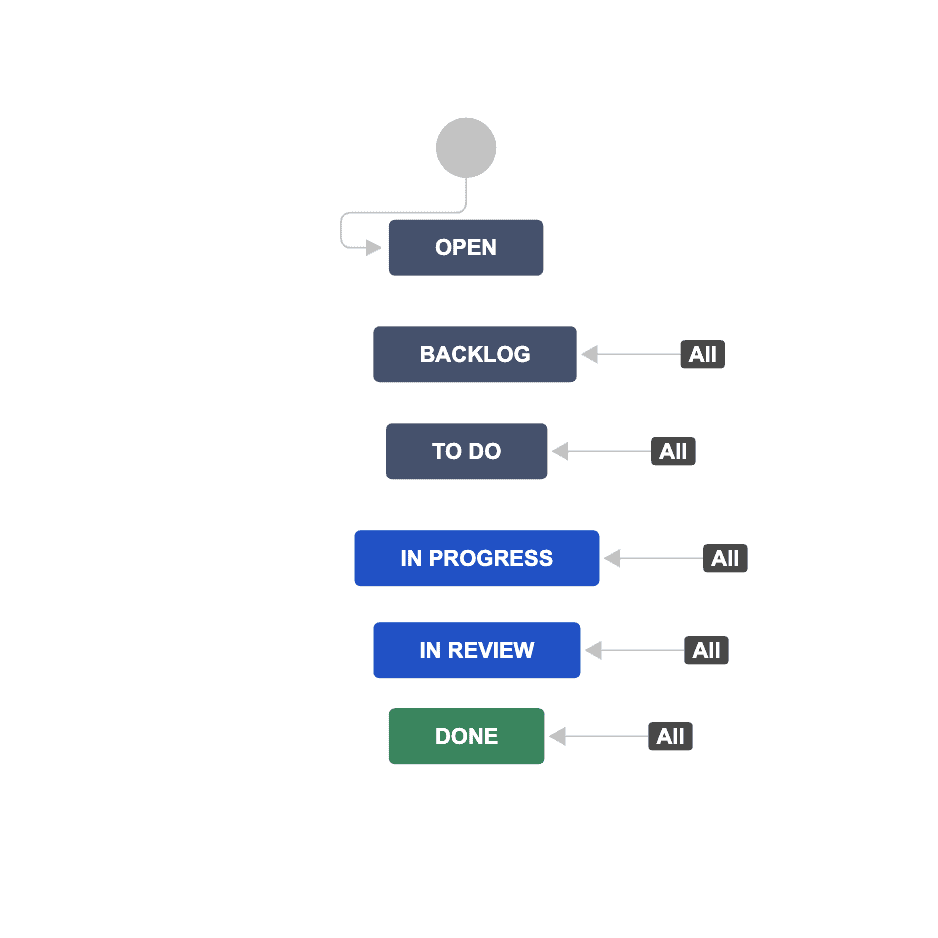
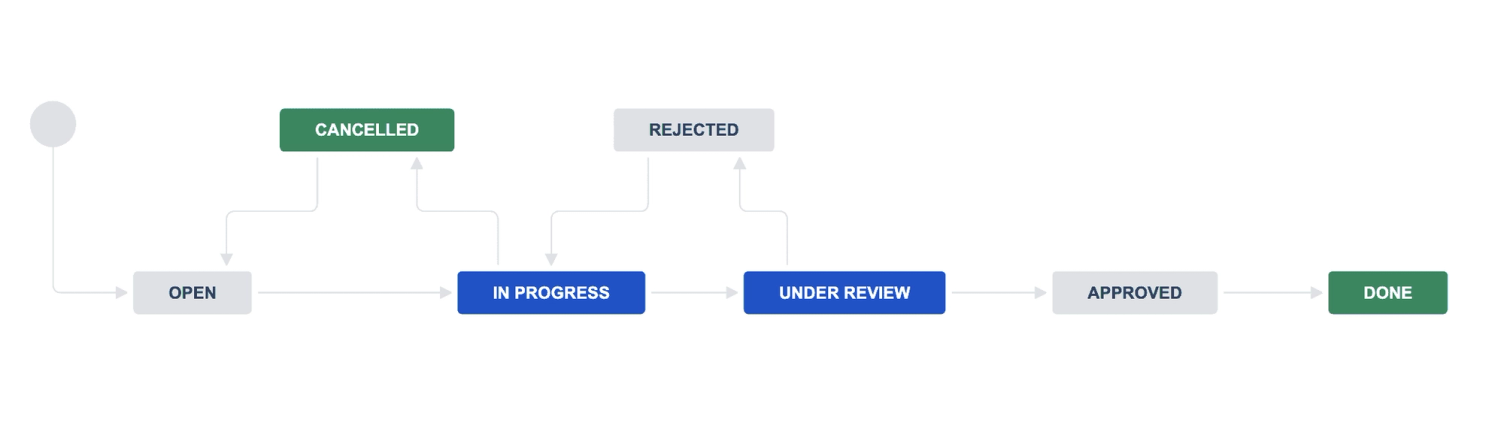
It is not always possible to transfer entire business processes as workflows to a second instance. Often, it is sufficient to transfer only individual process steps (statuses) that actually exist in the second or external instance and can therefore be processed. This requires the adjustment of an individual workflow mapping.
Aligning the workflows of both teams
For an efficient synchronisation to succeed, it is essential to discuss beforehand how individual workflow process steps (statuses) appear in the respective instances. Via workflow mapping, each individual process step from one instance is aligned with the corresponding process step from the other instance. Once the status in the reference ticket changes, this change will automatically trigger a status adjustment in the target ticket.
3. Synchronisation of Jira ticket information
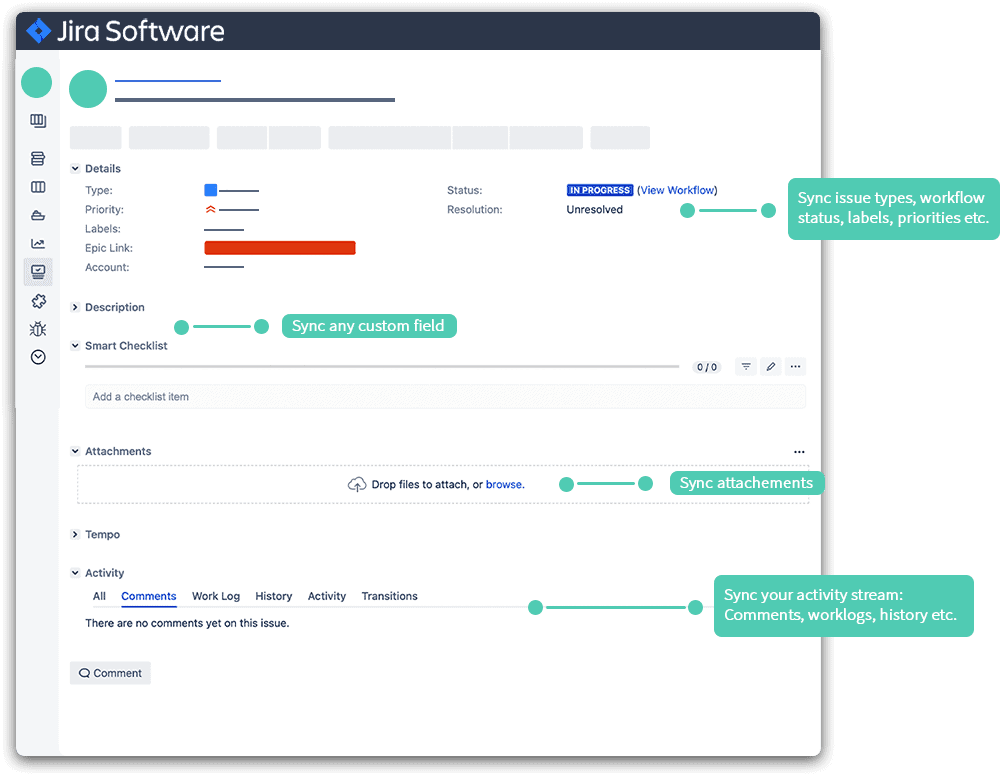
After you have aligned workflows with your teams, it is now time to consider which fields in the ticket should be synchronised. Do you only need simple information such as ticket name, priority, and description? Or should attachments, epics, comments, and custom fields also be transferred to the second instance or project? With Jira Sync, it is also possible to adjust the shared information at any time and tailor it entirely to your needs.
4. User Mapping
In addition to the usual information in Jira tickets, the question arises as to whether individual assignees or authors should also be “mapped” to a second instance. For example, the user in the first instance may have the name “John Doe”, while in the second/external instance, this user is then mapped to the name “John Doe (External)”.
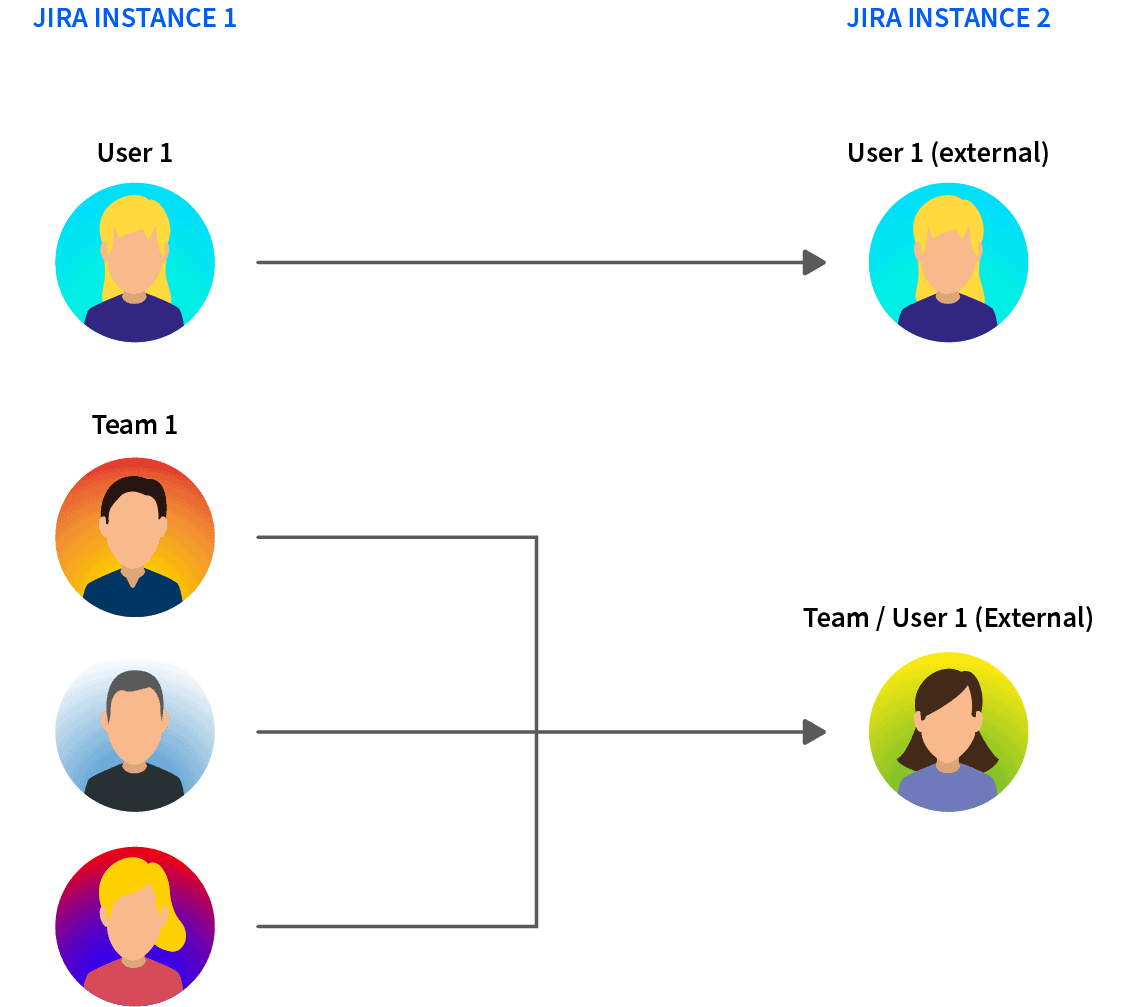
Alternatively, it is also possible to map multiple users from Project A to a single user in Project B. This makes it easier to manage external service providers or teams and eliminates the need to add countless additional users to your Jira instance.
The efficient solution: An app for synchronising Jira projects
To overcome the challenges of separate Jira worlds, there are powerful tools that help you synchronise your Jira instances. Two of the leading solutions are Advanced Issue Sync for Jira by XALT and Exalate. Let's take a closer look at how you can use these tools to synchronise Jira projects. (Here you will find a detailed comparison of Advanced Issues Sync for Jira vs Exalate.)
Step 1: Choose the right tool
Both tools, Advanced Issue Sync and Exalate, offer robust features for Jira synchronisation. Here are some key features of Advanced Issue Sync:
- Synchronisation without plugin installation
- Real-time synchronisation of tickets, comments, and attachments
- Support for Jira Server, Data Center, and Cloud
- Individual workflow and user mappings
- Highest security standards through installation behind your firewall
Choose the tool that best fits your specific requirements.
Step 2: Configure the synchronisation
Once you have chosen a tool, it is time to set it up:
- Connect your Jira instances: Establish a secure connection between the instances to be synchronised.
- Define the scope of synchronisation: Select which projects, tickets and fields should be synchronised.
- Create workflow mappings: Map the statuses of your different workflows to each other so that status changes are transferred correctly.
- Set up user mappings: Ensure that users are correctly assigned in both systems.
Step 3: Test and optimise
Before you deploy the synchronisation on a large scale:
- Run a test with a small project.
- Check whether all information is transferred correctly.
- Gather feedback from your team and adjust the settings if necessary.
Step 4: Rollout and training
Once everything is running smoothly:
- Inform all involved teams about the new synchronisation solution.
- Offer short training sessions to ensure everyone understands how the synchronization works and what to keep in mind.
- Establish clear guidelines on how to handle synchronized tickets.
Conclusion: Synchronize your Jira instances for maximum success
Synchronizing your Jira instances is more than just a technical upgrade – it is a game-changer for your project management processes. With tools such as Advanced Issue Sync for Jira by XALT or Exalate, you can:
- Optimize collaboration between internal and external teams
- Drastically reduce the manual effort involved in data transfer
- Increase the transparency and traceability of your projects
- Respond more quickly to changes and customer requirements
By synchronizing your Jira instances, you create a unified information base that enables your team to focus on what matters: developing great products and providing outstanding service.
Your next step: End the chaos in your project management
Advanced Issue Sync for Jira is your solution for seamless collaboration and efficient project management.
Act now and revolutionize the way you work:
- Experience how easy the setup is – no complex IT infrastructure required
- See your teams become more productive and projects run more smoothly