
You are probably working with many different tools to manage your projects. Jira for tasks, Slack for communication, GitHub for code, AWS for infrastructure, and Azure for cloud services. Each of these tools is great on its own, but the real problem is that they often do not communicate with each other. This raises the question: How do I integrate Jira with other tools?
Contents
- Why integrate Jira with other tools?
- Why lack of integration slows everything down
- How to integrate Jira with other tools like Slack, GitHub, AWS, and Azure – a step-by-step guide
- General steps for integrating Jira with other tools and apps
- 1. How do I integrate Jira with Slack?
- 2. How do I integrate Jira with GitHub?
- 3. How do I integrate Jira with AWS?
- 4. How do I integrate Jira with Azure?
- How do I integrate Jira with Jira? (Advanced Issue Sync)
- Integration is the key to an efficient workflow
Why integrate Jira with other tools?
As apps often do not communicate with each other, data ends up stored in various silos, leaving no central source of information. Everything must be synchronised manually, which is not only time-consuming but also prone to errors.
The result? A lack of transparency and efficiency. Product Owners, Jira admins, and developers lose track of things because they constantly have to switch between tools to get up-to-date information.
An example:
A developer updates the code in GitHub, but the Jira ticket remains untouched. The discussion about it takes place in Slack, yet this information does not make it into Jira. When a Product Owner wants to see the progress of the project, they only get an incomplete view. This fragmentation leads to misunderstandings, delayed projects, and an inefficient workflow.
Why lack of integration slows everything down
You might think that it is only minor delays when information is not synchronised directly between tools. But as the number of projects and tools grows, the problem quickly escalates into a real challenge. Here are the most common negative impacts:
- Loss of time and efficiency: Every time you have to manually update data between different tools, you lose valuable time. The constant back-and-forth between Jira, GitHub, Slack, and others significantly delays the workflow.
- Prone to errors: Manual work means that mistakes happen. A forgotten update or an incorrect status in Jira can lead to false assumptions and poor decisions.
- Lack of transparency: Without a central source of information, there is no clear overview. Product Owners and stakeholders are not kept up to date and have to keep asking questions, which further slows down progress.
- Frustration in the team: No one likes working inefficiently. Having to constantly search for missing information quickly leads to frustration and demotivation within the team.
Conclusion: If you don't integrate Jira with your other tools, you risk losing important information, losing track of things, and causing unnecessary delays. But there is a solution.
How to integrate Jira with other tools like Slack, GitHub, AWS, and Azure – a step-by-step guide
Fortunately, Jira offers many options for integration with other tools. This allows you to streamline your processes, minimise errors, and boost your efficiency. Here is how to do it:
General steps for integrating Jira with other tools and apps
- Preparation: Decide which tools you want to integrate with Jira and check whether you have the necessary permissions in Jira and the other tool.
- Visit the Jira Marketplace: You will find most integrations in the Atlassian Marketplace. In Jira, go to “Apps” > “Marketplace” and search for the integration you need.
- App installation: Select the appropriate app and click “Install”. Follow the instructions to install the app in your Jira project.
- Authentication and permissions: In most cases, you will need to enter API keys or authenticate via OAuth to connect Jira and the other tool. Ensure that the correct permissions are granted.
- Configuring the integration: Specify which information should be synchronised between Jira and the tool. You can often define exactly which events or data are linked.
- Testing the integration: Test the integration with a few sample tickets or messages to ensure that everything works as expected.
- Training and documentation: Inform your team about the new integrations and document the process so that everyone knows how to use the new features.
These general steps can be applied to most tools and apps. Now let's look at a few specific examples.
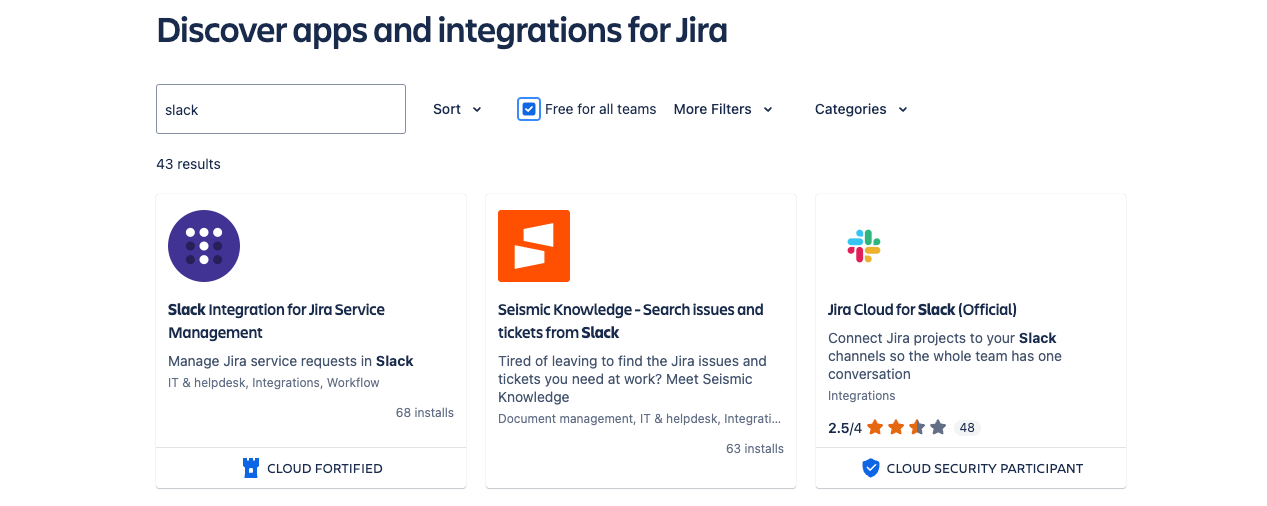
1. How do I integrate Jira with Slack?
Slack is the hub of communication for many teams. With the Jira-Slack integration, you can create Jira tickets, add comments, and receive notifications directly in Slack.
Integration steps:
- In Jira, go to “Apps” > “Marketplace” or visit the Atlassian Marketplace.
- Search for “Slack Integration for Jira” and install the app.
- Connect Jira and Slack.
- In Slack, you can use the /jira create command to create a Jira ticket directly from a channel or in
- Jira notifications can be sent directly to specific Slack channels.
Benefits: You no longer need to switch between Slack and Jira. Updates, comments, and notifications are always visible in both tools.

2. How do I integrate Jira with GitHub?
GitHub is one of the leading platforms for version control. With the GitHub-Jira integration, you can link code commits, pull requests, and branches directly to Jira tickets.
Integration steps:
- Go to “Apps” > “Marketplace” in Jira and search for “GitHub for Jira”.
- Install the app and connect your Jira project with your GitHub repository.
- Include the Jira ticket key (e.g., ABC-123) in your commits (the key should be entered in the commit message) to link them directly to the corresponding tickets.
- Jira then displays in the tickets which commits or pull requests are associated with them.
Benefits: You keep track of all code changes and can easily link them to the corresponding Jira tickets.
3. How do I integrate Jira with AWS?
Many companies use AWS for their infrastructure. With the AWS-Jira integration, you can manage and automate your AWS environment directly in Jira.
Integration steps:
- Use “AWS Service Management Connector for Jira Service Management” to manage AWS services such as EC2 instances, S3 buckets, and IAM roles in Jira.
- Alternatively, you can use AWS Lambda or AWS CloudWatch to automatically create Jira tickets when specific events occur.
- AWS API Gateway allows you to integrate API calls into Jira, so that, for example, deployments or infrastructure changes are automatically documented in Jira.
Benefits: You can manage AWS resources directly in Jira and map events automatically to Jira.
4. How do I integrate Jira with Azure?
Many companies rely on Azure for cloud services. Here, too, there are practical integrations with Jira.
Integration steps:
- Install the desired Azure Integration for Jira app to connect your Azure instance to Jira.
- Depending on the app, you can control or display different functions.
- In addition, you can use Azure Active Directory (AD) for authentication and enable Single Sign-On (SSO) for Jira.
Benefits: You can track development progress and infrastructure changes directly in Jira tickets, giving you full transparency at all times.
How do I integrate Jira with Jira? (Advanced Issue Sync)
If you want to synchronise Jira instances with each other, Advanced Issue Sync is the ideal tool. It enables the synchronisation of Jira tickets, comments, attachments, and workflows across multiple Jira instances without the need for extensive administrative work.
Step-by-step guide to integration with Advanced Issue Sync:
- Installation: Use “Advanced Issue Sync” from the Atlassian Marketplace.
- Establish connection: Authenticate the instances.
- Define synchronisation rules: Specify which tickets, comments, fields, and workflows should be synchronised.
- Test run: Ensure that the synchronisation runs correctly.
For more information, visit Advanced Issue Sync for Jira.
Integration is the key to an efficient workflow
Integrating Jira with tools such as Slack, GitHub, AWS, and Azure is essential to optimise your processes, reduce errors, and enable your team to work more efficiently. With the steps outlined above, you can immediately start integrating Jira into your daily tools and enjoy the benefits of seamless collaboration.